Setup guide
Get from download to your first printed label in a few minutes. Use this checklist before your next live show.
Install on Windows
- Download the installer from the Download page and run
Whatnot Label Lite Setup.exe. - SmartScreen warning? The installer is not code-signed yet. Click More info, then Run anyway. This is normal for independent software.
- Choose install location if prompted, then finish the wizard. Desktop and Start menu shortcuts are created automatically.
- Launch Whatnot Label Lite from the shortcut or Start menu.
Requirements: Windows 10 or later, a label printer installed in Windows, and a Whatnot seller account.
First launch & trial
When you open the app for the first time on a PC, your 7-day free trial starts automatically. No credit card required.
- The status bar shows your license state (trial, valid, etc.).
- During trial you have full access — sale detection, autoprint, label designer, and exports.
- When the trial ends, printing and show joining pause until you subscribe and activate a license key.
Printer setup
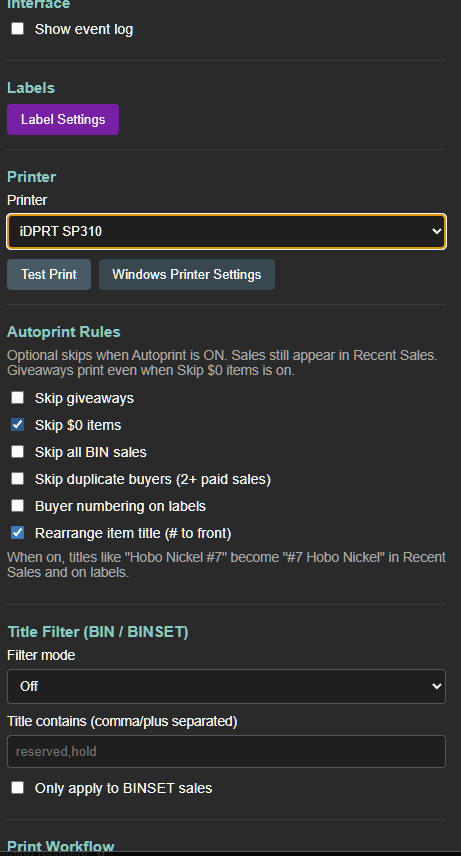
Set up your label printer in Windows first, then point the app at it.
- Install your printer in Windows (USB, Bluetooth, or network) and confirm it prints a test page from Windows Settings.
- In the app, open Settings and choose your printer from the Printer dropdown.
- Click Windows Printer Settings if you need to adjust paper size or defaults in Windows.
- Open Label Settings to set label size, fields (buyer, item, price), and layout. Print a test label before your show.
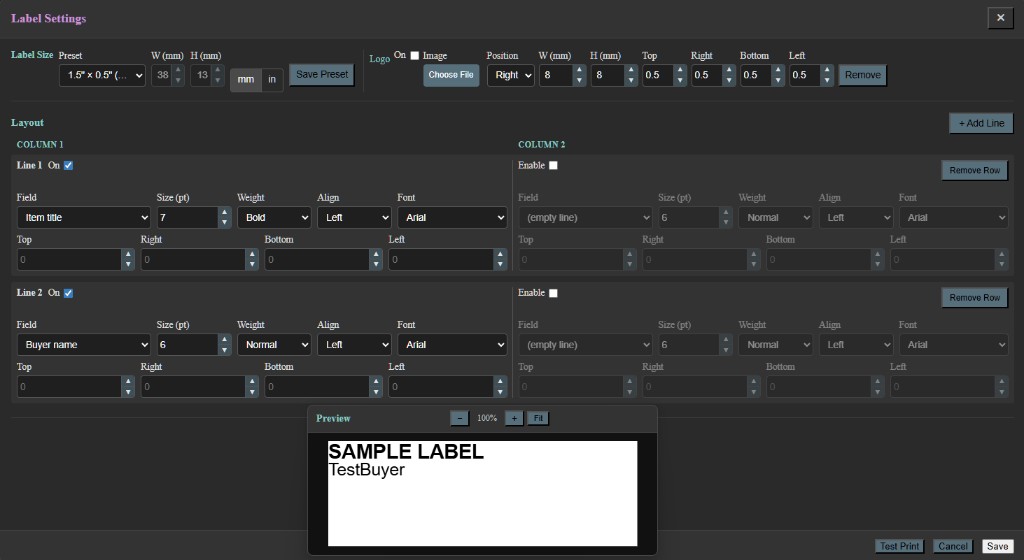
Tip: match your physical label size (e.g. 4×6) in Label Settings so text fits cleanly.
Log in to Whatnot
The app has its own embedded Whatnot browser — separate from Chrome or Edge on your desktop.
- In the main panel, browse to Whatnot and sign in with your seller account.
- When login succeeds, the top bar shows Whatnot: logged in.
- You only need to log in once per PC. The session is saved locally on your machine — it is not bundled into the installer.
You can still host in your usual browser if you prefer. The app must be logged in and joined to your show to detect sales for that live.
Before your show
Run through this quick checklist 5–10 minutes before you go live:
- Refresh shows — click Refresh in the show picker so your upcoming live appears in the dropdown.
- Join Show — select your live and click Join Show. The app loads that show in its panel and starts watching for sales.
- Check status — confirm Whatnot: logged in and the watcher shows you are joined to the correct show.
- Autoprint — toggle Autoprint: ON for hands-free printing, or leave it off and reprint from Recent Sales later.
- Test print — optional: trigger a test from Label Settings so paper and alignment look right.
Important: Click Join Show in the app even if you are already live in another browser tab. The app only watches the show it has joined.
During your show
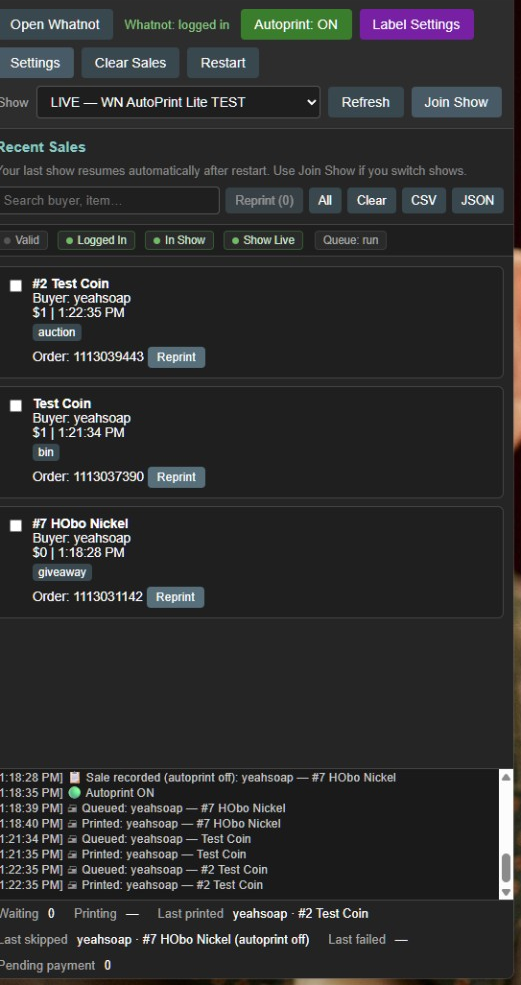
As sales happen, they appear in Recent Sales on the right.
- Autoprint ON — labels print automatically when a sale is detected (subject to your autoprint rules).
- Autoprint OFF — sales still record; click a sale or use reprint when you want a label.
- Giveaway, BIN, auction — the app detects these event types from your joined live show.
- Filters — in Settings → Autoprint Rules, skip $0 items, duplicate buyers, title keywords, and more. Skipped sales still show in Recent Sales.
- After the show — search Recent Sales, batch reprint, or export CSV/JSON.
If a show ends, refresh the show list and join your next live.
Subscribe & license
When you are ready to continue after the trial:
- Subscribe for $10/month (unlimited shows and labels) from the checkout page or the in-app Subscribe button.
- Get your license key from your receipt email or the account portal.
- In the app, open Settings → License, enter your email and license key, then click Activate license.
- Status should show Valid. You can manage billing anytime from Account.
If your subscription lapses, the app shows a lock screen with options to renew, subscribe, or re-activate.
Troubleshooting
Windows blocked the installer
Click More info → Run anyway. The app is not code-signed yet; this warning is expected.
“Whatnot: logged in” does not appear
Sign in inside the app’s Whatnot panel — not only in Chrome. After login, navigate away from the login page. Use Restart in the app if the status seems stuck.
No shows in the dropdown
Click Refresh. Make sure you are logged in as a seller with a scheduled or live show. If the show already ended, schedule or start your next one and refresh again.
Sales are not appearing
Confirm you clicked Join Show for the correct live. Check that you are logged in and the show is actually running. Restart the app if you switched shows mid-stream.
Printer not printing
Verify the printer works in Windows first. In app Settings, re-select the printer and print a test from Label Settings. Check paper size matches your labels.
Autoprint skipped a sale
Check Settings → Autoprint Rules. Skipped sales still appear in Recent Sales — you can reprint manually.
Trial ended / app is locked
Subscribe, copy your license key, and activate under Settings → License. Use Renew subscription if you were already a customer.
Still stuck?
Email sales@whatnotlabellite.com with a short description of what you see (logged in? joined show? error text?).